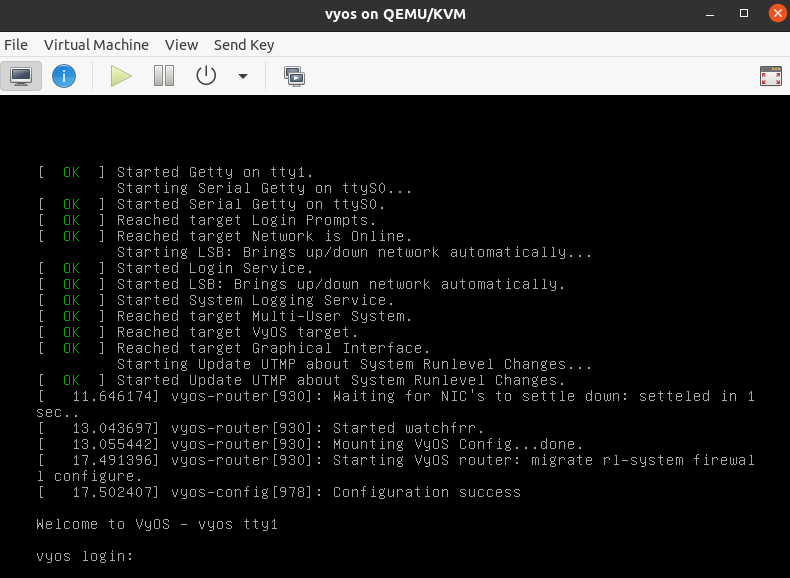
Run VyOS on Libvirt QEMU/KVM
Libvirt is an open-source API, daemon, and management tool for managing platform
virtualization. You can deploy VyOS on libvirt KVM in several ways:
using Virt-Manager or the native CLI. This example uses 4 gigabytes
of memory, 2 CPU cores, and the default network virbr0.
CLI
Deploy from ISO
Create VM name vyos_r1. You must specify the path to the ISO image,
the disk qcow2 will be created automatically. The default network is
the virtual network (type Virtio) created by the hypervisor with NAT.
$ virt-install -n vyos_r1 \
  --ram 4096 \
  --vcpus 2 \
  --cdrom /var/lib/libvirt/images/vyos.iso \
  --os-variant debian10 \
  --network network=default \
  --graphics vnc \
  --hvm \
  --virt-type kvm \
  --disk path=/var/lib/libvirt/images/vyos_r1.qcow2,bus=virtio,size=8 \
  --noautoconsole
Connect to the VM with the command virsh console vyos_r1
$ virsh console vyos_r1

Connected to domain vyos_r1
Escape character is ^]

vyos login: vyos
Password:

vyos@vyos:~$ install image
After installation, exit the console using the key combination
Ctrl + ] and reboot the system.
Deploy from qcow2
The benefit of using KVM
images is that they don’t require installation.
Download the predefined VyOS .qcow2 image.
curl --url link_to_vyos_kvm.qcow2 --output /var/lib/libvirt/images/vyos_kvm.qcow2
Create VM with import qcow2 disk option.
$ virt-install -n vyos_r2 \
   --ram 4096 \
   --vcpus 2 \
   --os-variant debian10 \
   --network network=default \
   --graphics vnc \
   --hvm \
   --virt-type kvm \
   --disk path=/var/lib/libvirt/images/vyos_kvm.qcow2,bus=virtio \
   --import \
   --noautoconsole
Connect to the VM with the command virsh console vyos_r2
$ virsh console vyos_r2

Connected to domain vyos_r2
Escape character is ^]

vyos login: vyos
Password:

vyos@vyos:~$
If you cannot access the login screen, the KVM console may be set as the default boot option.
Open a secondary session and run this command to reboot the VM:
$ virsh reboot vyos_r2
Then go to the first session where you opened the console.
Select VyOS 1.4.x for QEMU (Serial console) and press Enter.
The system is fully operational.
Virt-Manager
The Virt-Manager application is a desktop user interface for managing virtual machines through libvirt. On Linux, open the VMM.
Deploy from ISO
Open VMM and create a new VM
Choose
Local install media(ISO)
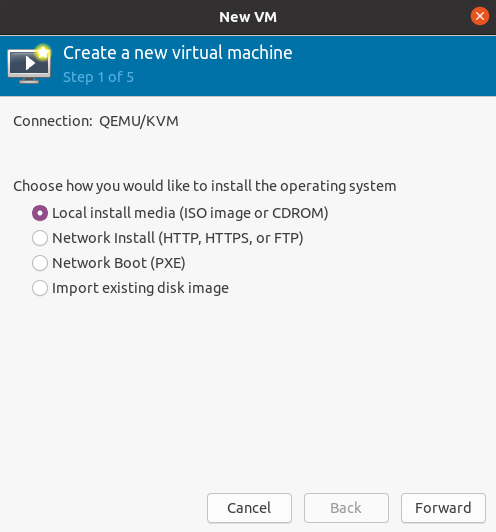
Choose the path to the VyOS ISO image. Select any Debian-based operating system.
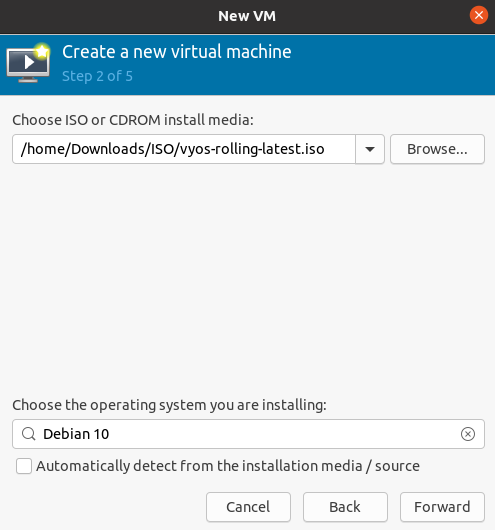
Choose Memory and CPU
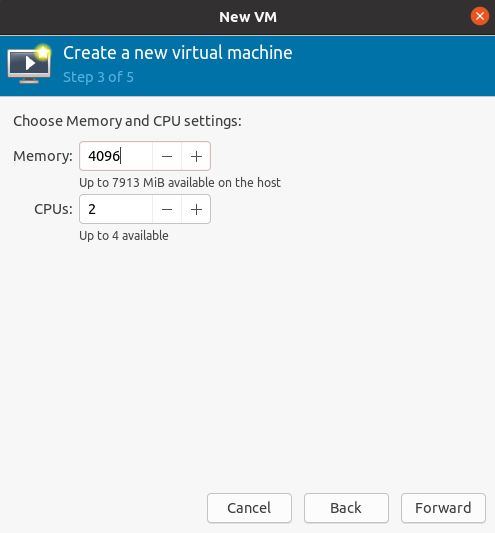
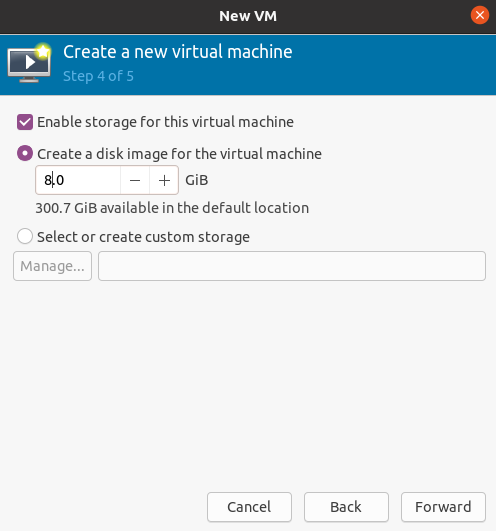
Disk size
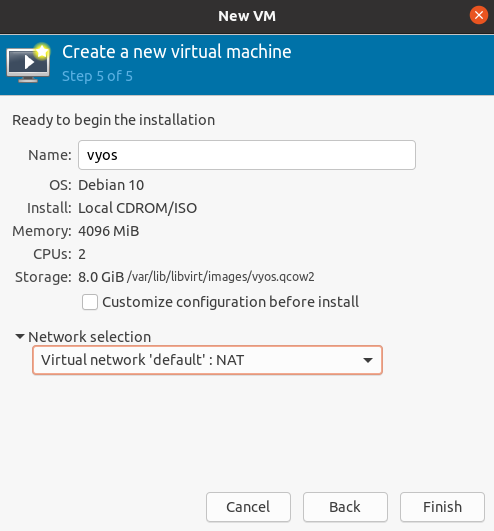
Name of VM and network selection
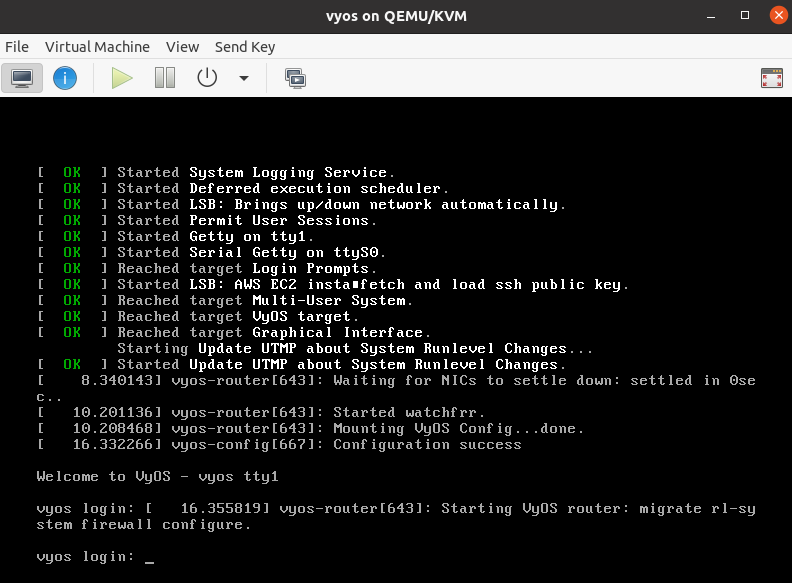
Then the system will be taken to the console.
Deploy from qcow2
Download the predefined VyOS .qcow2 image.
curl --url link_to_vyos_kvm.qcow2 --output /var/lib/libvirt/images/vyos_kvm.qcow2
Open VMM and create a new VM
Choose
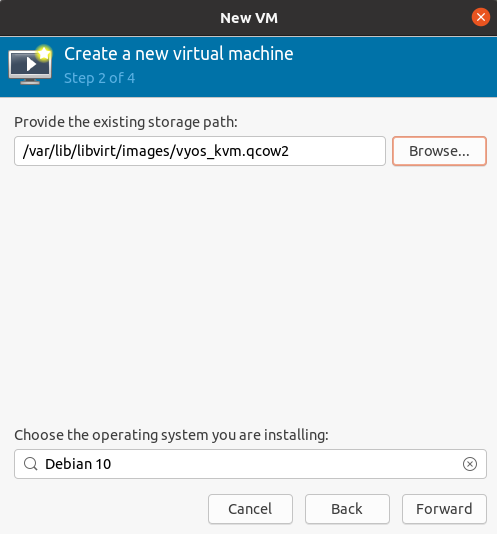
Import existing diskimage
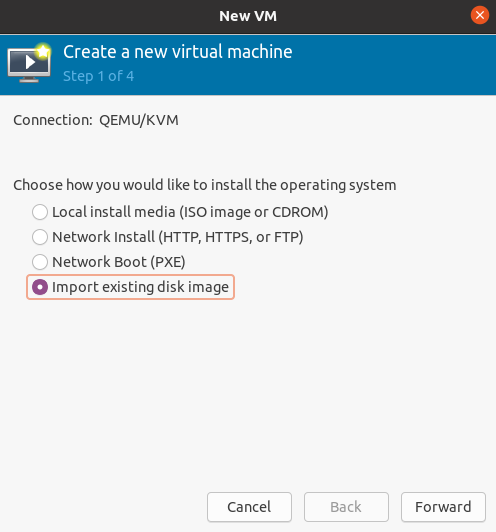
Choose the path to the
vyos_kvm.qcow2image that you downloaded. Select any Debian-based operating system.
Choose Memory and CPU
Name of VM and network selection
Then the system will be taken to the console.