Secure Boot
Initial UEFI Secure Boot support is available (T861). VyOS uses
shim from Debian 12 (Bookworm), which is properly signed by the UEFI
Secure Boot key from Microsoft.
Note
There is yet no signed version of shim for VyOS, thus we
provide no signed image for secure boot yet. If you are interested in
secure boot you can build an image on your own.
To generate a custom ISO with your own secure boot keys, run the following commands prior to your ISO image build:
cd vyos-build
CA_DIR="data/certificates"
SHIM_CERT_NAME="vyos-dev-2025-shim"
VYOS_KERNEL_CERT_NAME="vyos-dev-2025-linux"

openssl req -new -x509 -newkey rsa:4096 -keyout ${CA_DIR}/${SHIM_CERT_NAME}.key -out ${CA_DIR}/${SHIM_CERT_NAME}.der \
  -outform DER -days 36500 -subj "/CN=VyOS Networks Secure Boot CA/" -nodes
openssl x509 -inform der -in ${CA_DIR}/${SHIM_CERT_NAME}.der -out ${CA_DIR}/${SHIM_CERT_NAME}.pem

openssl req -newkey rsa:4096 -sha256 -nodes -keyout ${CA_DIR}/${VYOS_KERNEL_CERT_NAME}.key \
  -out ${CA_DIR}/${VYOS_KERNEL_CERT_NAME}.csr -outform PEM -days 3650 \
  -subj "/CN=VyOS Networks Secure Boot Signer 2025 - linux/"
openssl x509 -req -in ${CA_DIR}/${VYOS_KERNEL_CERT_NAME}.csr -CA ${CA_DIR}/${SHIM_CERT_NAME}.pem \
  -CAkey ${CA_DIR}/${SHIM_CERT_NAME}.key -CAcreateserial -out ${CA_DIR}/${VYOS_KERNEL_CERT_NAME}.pem -days 3650 -sha256
Installation
As our version of shim is not signed by Microsoft we need to enroll the
previously generated MOK to the system.
First, disable UEFI Secure Boot for the installation.
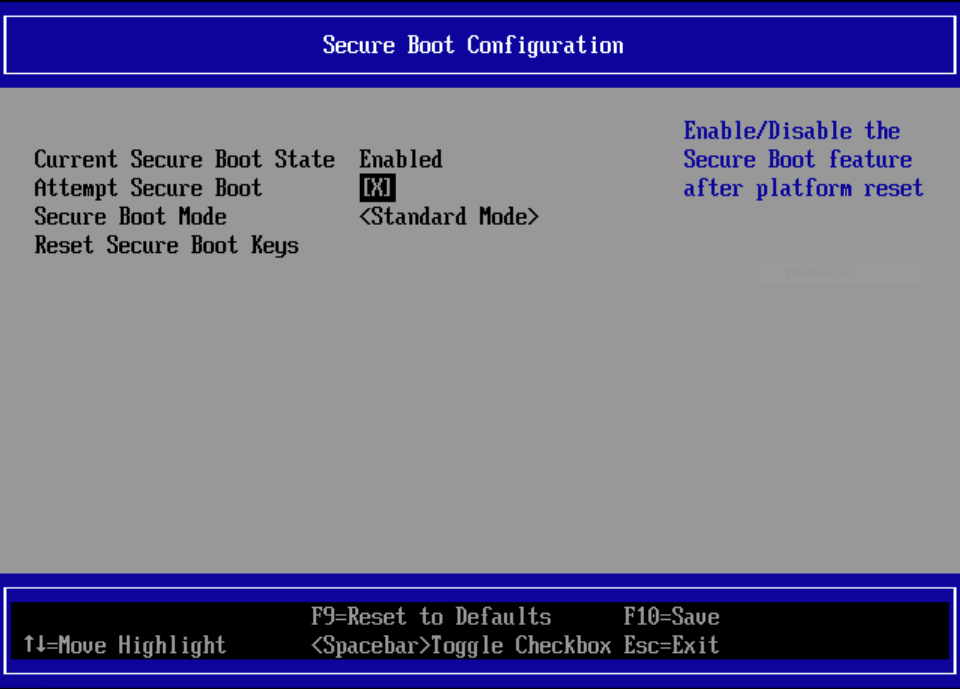
Proceed with the standard VyOS installation on
your system. Instead of the final reboot command, enroll the
MOK.
vyos@vyos:~$ install mok
input password:
input password again:
You can set the input password to any value you choose. You’ll need this
password after reboot when MOK Manager launches to permanently install the keys.
With the next reboot, MOK Manager will automatically launch
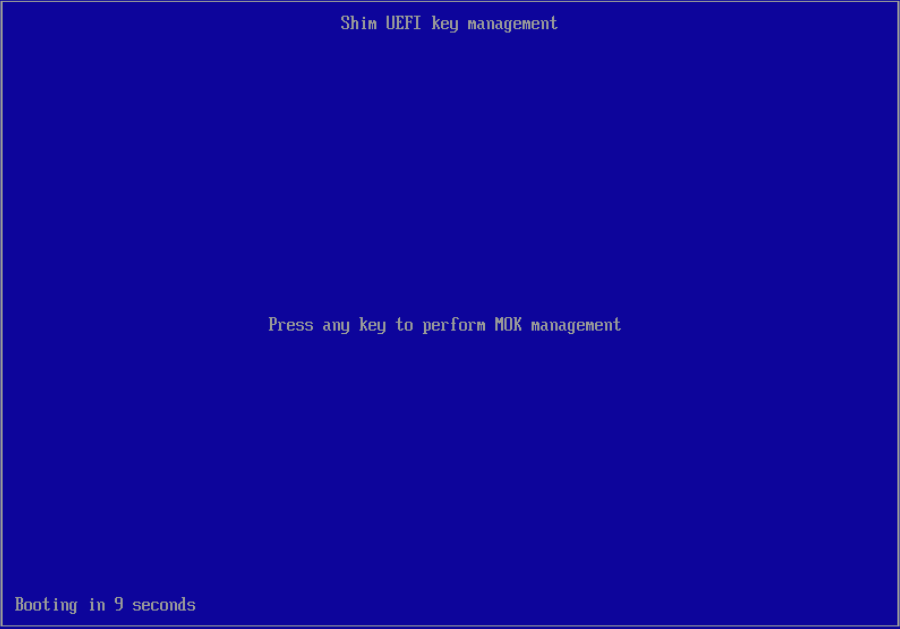
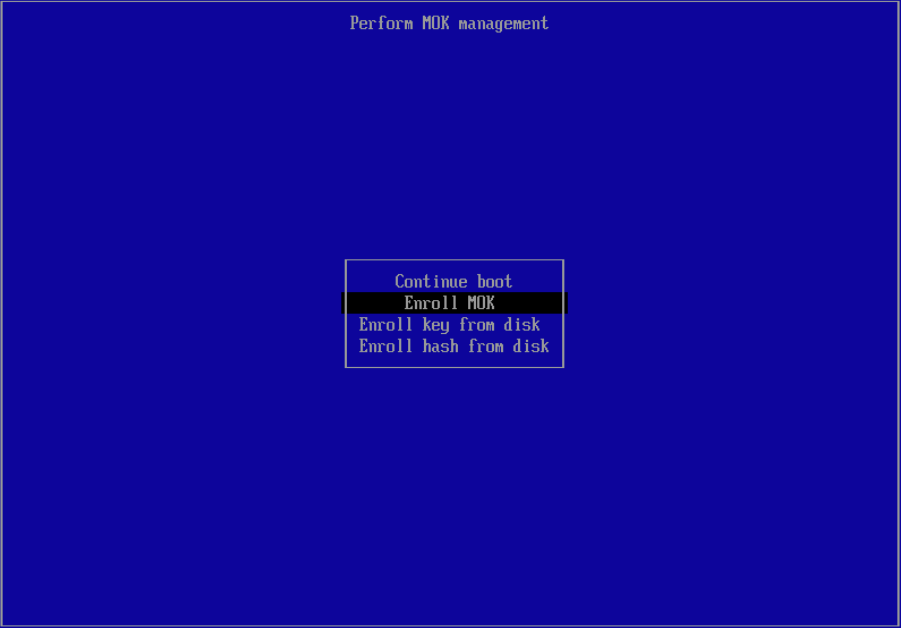
Select Enroll MOK
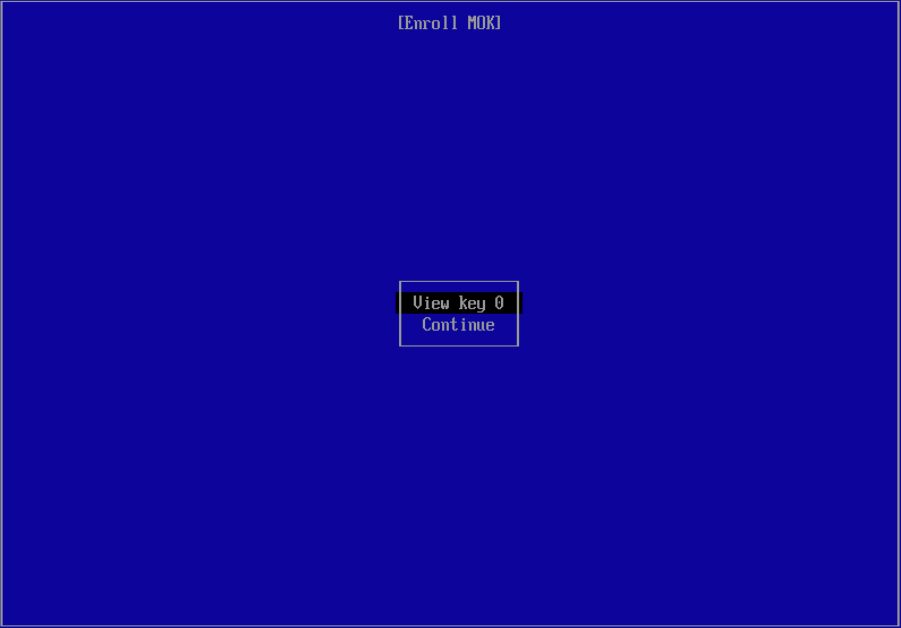
You can now view the key to be installed and continue with key installation.
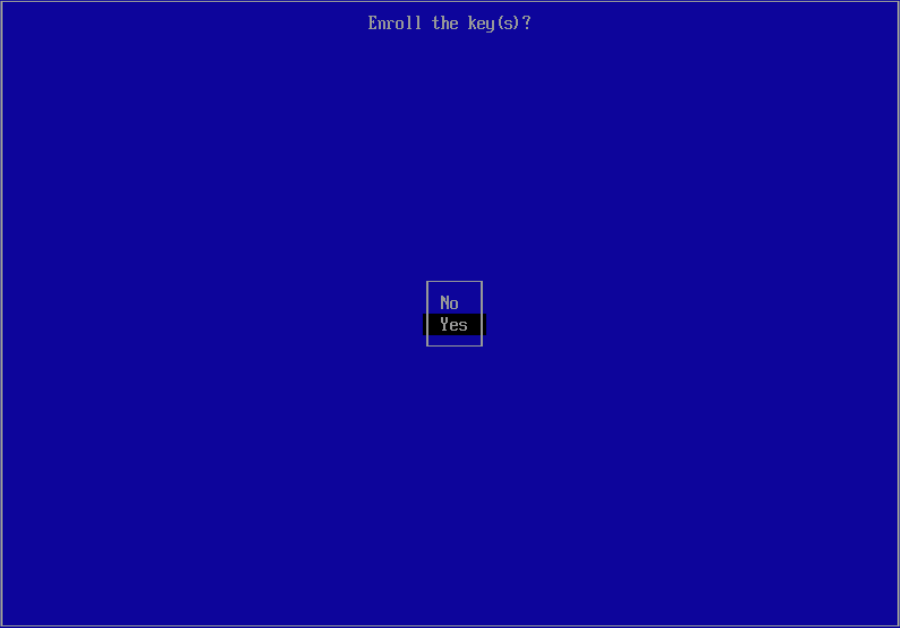
Now you need to enter the password you defined previously.
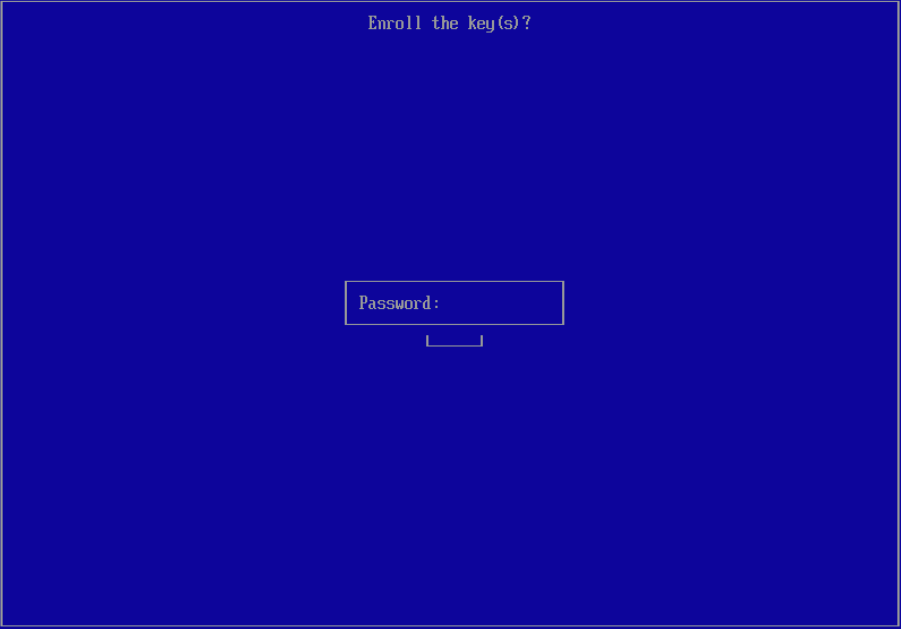
Now reboot and re-enable UEFI Secure Boot.
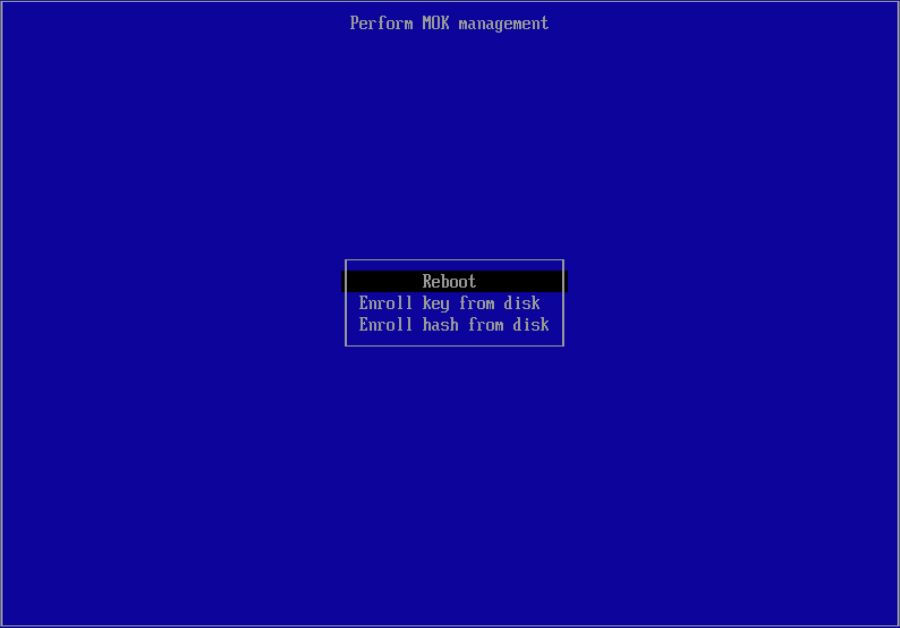
VyOS will now launch in UEFI Secure Boot mode. You can verify this by running one of the following commands:
vyos@vyos:~$ show secure-boot
SecureBoot enabled
vyos@vyos:~$ show log kernel | match Secure
Oct 08 19:15:41 kernel: Secure boot enabled
vyos@vyos:~$    show version
Version:          VyOS 1.5-secureboot
Release train:    current
Release flavor:   generic

Built by:         autobuild@vyos.net
Built on:         Tue 08 Oct 2024 18:00 UTC
Build UUID:       5702ca38-e6f4-470f-b89e-ffc29baee474
Build commit ID:  9eb61d3b6cf426

Architecture:     x86_64
Boot via:         installed image
System type:      KVM guest
Secure Boot:      enabled   <-- UEFI secure boot indicator

Hardware vendor:  QEMU
Hardware model:   Standard PC (i440FX + PIIX, 1996)
Hardware S/N:
Hardware UUID:    1f6e7f5c-fb52-4c33-96c9-782fbea36436

Copyright:        VyOS maintainers and contributors
Image Update
Note
Currently, there is no signed version of shim for VyOS. If you
want Secure Boot support, you can build a custom image with your own keys.
During image installation, you install your MOK into the UEFI variables to add trust to this key. After you re-enable Secure Boot in UEFI, you can only boot into your signed image.
You can no longer boot into a CI-generated rolling release because those are not signed by a trusted party (T861 work in progress). This also means you must sign all successor builds with the same key; otherwise, you’ll see this error:
error: bad shim signature
error: you need to load the kernel first
Linux Kernel
In addition to Secure Boot support, VyOS uses ephemeral key signing of Linux Kernel modules for an extra security layer in both Secure and non-Secure boot images.
When the CI system builds a Kernel package and required third-party modules, it generates a temporary (ephemeral) key pair for signing the modules. The public key is embedded in the Kernel binary to verify loaded modules.
After the Kernel CI build completes, the generated key is discarded, meaning
we can no longer sign additional modules with that key. The Kernel configuration
also includes the option CONFIG_MODULE_SIG_FORCE=y, which enforces signature
verification for all modules. If you try to load an unsigned module, you’ll
get this error:
insmod: ERROR: could not insert module malicious.ko: Key was rejected by
service
This prevents loading any malicious code after the image is assembled into the Kernel as a module. You can disable this behavior on custom builds if needed.
Troubleshoot
In most cases, if something goes wrong during system boot, you’ll see this error message:
error: bad shim signature
error: you need to load the kernel first
This error means the Machine Owner Key used to sign the Kernel is not trusted
by your UEFI. Install the MOK using the install mok command as described
above.